

Creating an examination
Click New Obligation in the sidebar to create a new examination record. Enter the basic details — title, examiner, regulation type, due date — and you’ll land on the examination detail page.Parsing the request letter
Upload the PDF of the examination request letter. The system uses AI to parse every line item from the document. Each extracted item includes:- The examiner’s request text
- The FFIEC pillar or regulatory domain it maps to
- The type of evidence that satisfies it
- Common deficiencies from published enforcement actions
AI is used for classification and retrieval only — never generation of compliance content. All AI outputs require human review.
Assigning and tracking
Each request item can be assigned to a team member with a deadline. The examination dashboard shows progress by pillar, by assignee, and by status. Status progression: items move from not started → in progress → complete as evidence is gathered and reviewed. The examination advances from “preparing” to “in progress” automatically as work begins.Evidence upload
Each request item accepts file uploads — PDFs, DOCX, XLSX, CSVs, images. Files are stored securely and linked to the specific item they satisfy. Multiple files per item are supported, with a maximum of 50 MB per file.Exporting the response package
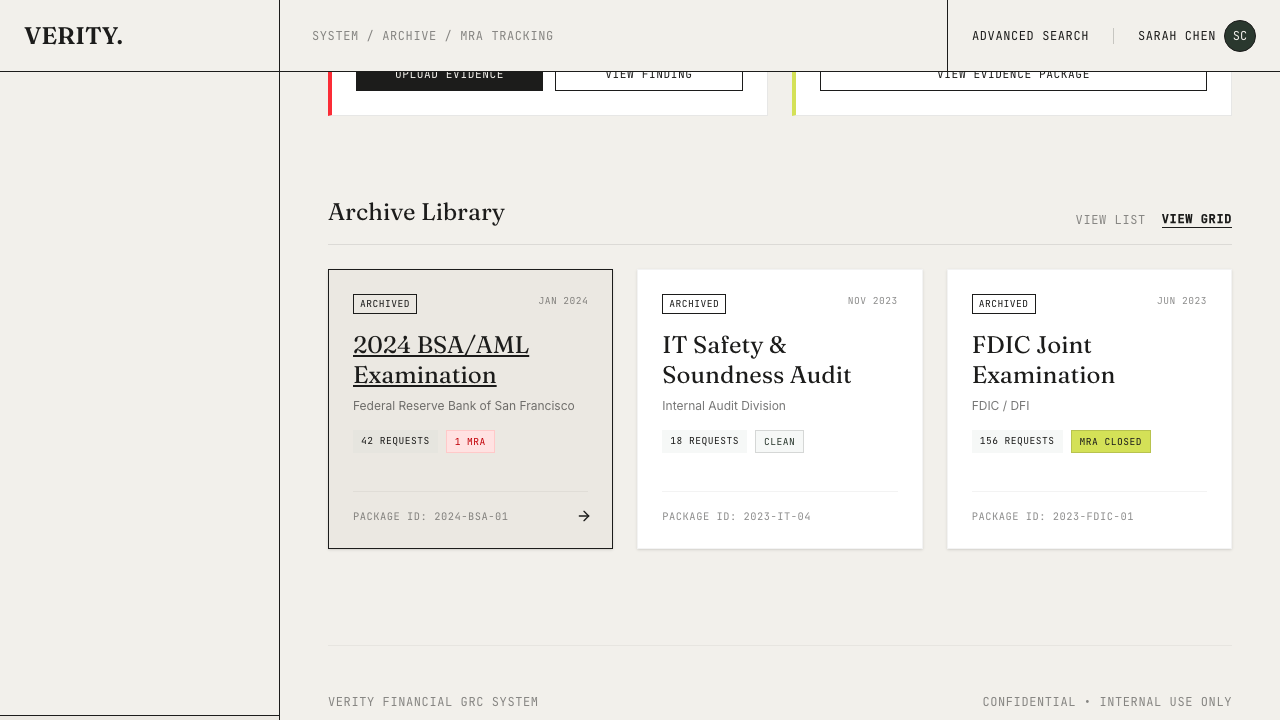
What’s in the export
- Cover letter — prefilled with your organization name, examiner details, and response deadline
- Table of contents — every request item grouped by FFIEC pillar
- Evidence manifest — a structured inventory of every item, its status, and linked files
Format options
| Format | Description |
|---|---|
| Consolidated binder with cover letter, TOC, per-pillar sections, and evidence manifest | |
| ZIP | Pillar-organized folder structure with evidence files, cover letter PDF, and manifest CSV |