

Before you start
You’ll need a running instance of Verity with at least one compliance program seeded. The quickest way:demo@verity.local / demo1234. The seeded profile includes a BSA/AML compliance program, a third-party oversight program, a sample examination, and a populated regulatory knowledge base.
If you’re running against the cloud instance at app.verityaml.com, sign up and the system will guide you through setup.
The dashboard: your compliance command center
Where to find it: Log in and you’re here. This is the home page.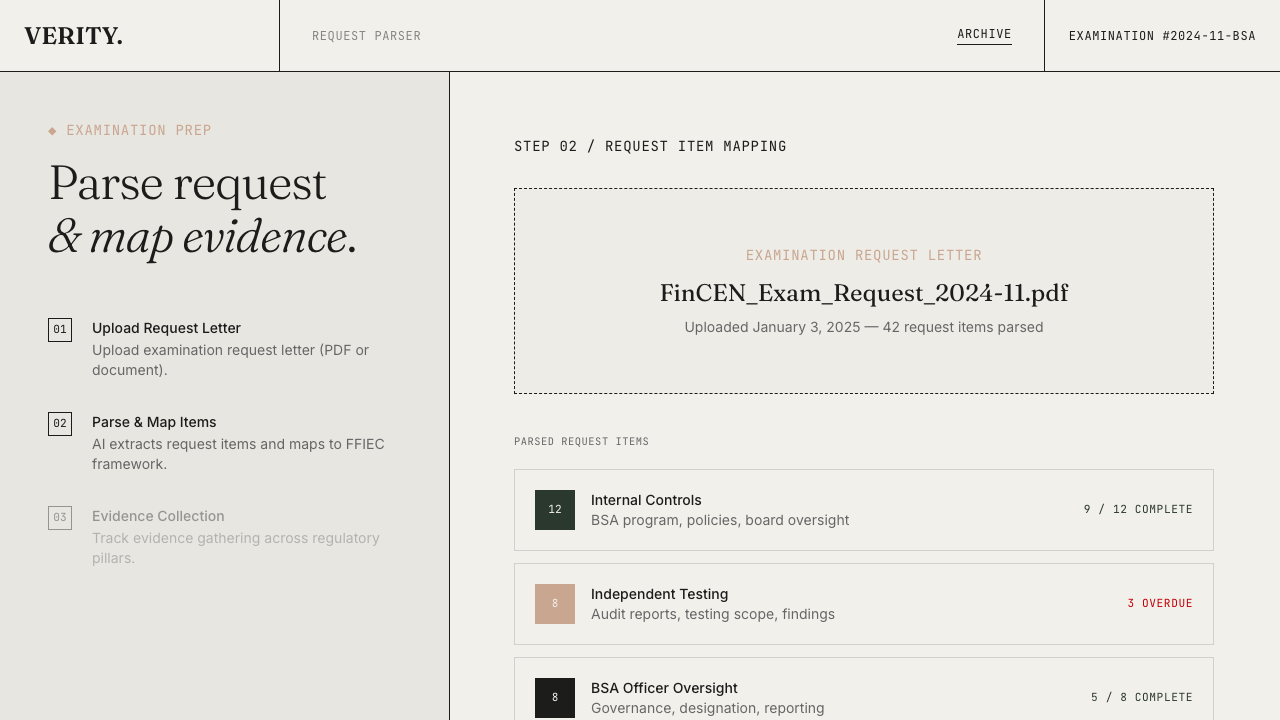
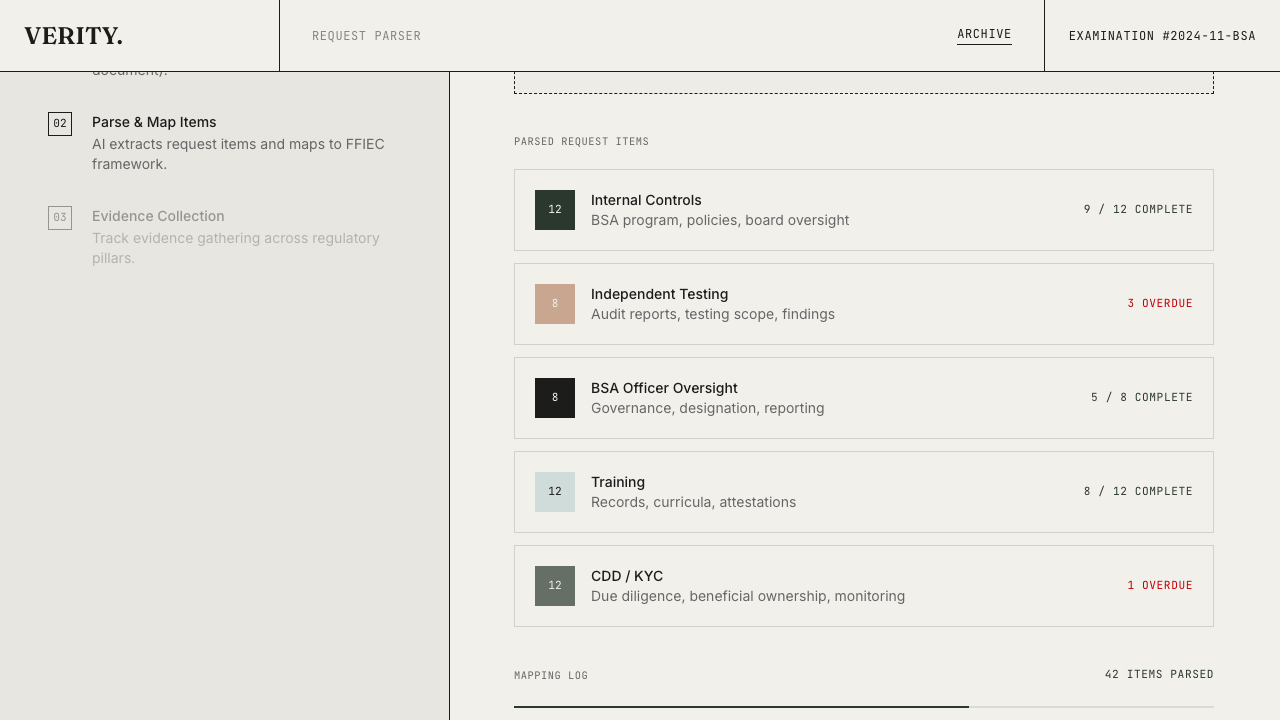
Switching programs
Verity supports multiple compliance programs. Click the tab at the top of the dashboard to switch between them. The seeded demo includes:- BSA/AML — mapped to the 5 FFIEC examination pillars
- Third-Party Oversight — mapped to the 8 monitoring areas from OCC 2023-17 (the interagency guidance on third-party risk management)
Domain detail: criteria and evidence
Where to find it: Click any domain card on the dashboard.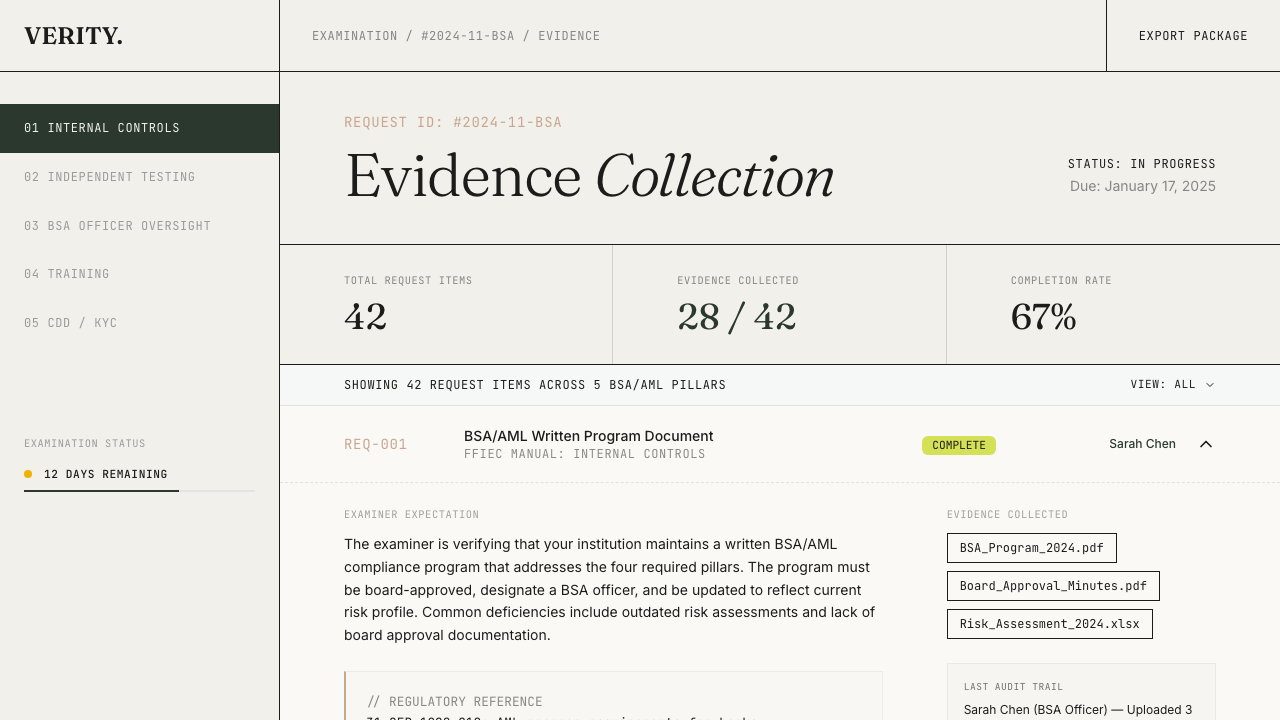
Understanding the criteria table
Each row shows:- Criterion text — what the regulation requires (e.g., “Board-approved BSA/AML compliance program documented and updated annually”)
- Regulatory source — the specific FFIEC section or OCC 2023-17 paragraph it traces back to
- Evidence count — how many documents are linked to this criterion
- Evidence status — where you stand: Missing, Stale, Partial, or Sufficient
Updating evidence status
The status column is a dropdown, not a static label. Click it to change a criterion’s evidence status. The change takes effect immediately — you’ll see the domain score at the top of the page update in real time. The score formula is straightforward: each “sufficient” criterion contributes 100 points, each “partial” contributes 50, and everything else contributes zero. Divide by total criteria, and that’s your domain score.Reviewer notes
Click Expand on any criterion to reveal the detail section. The notes textarea lets your team add context — “Waiting on updated board minutes from Q4,” “Policy document needs legal sign-off,” etc. Notes auto-save after a one-second pause. You’ll see a “Saving…” indicator followed by “Saved” to confirm.Linked evidence
Below the notes, you’ll see any evidence documents linked to the criterion. Each entry shows:- The document label
- Its source type (attachment, MRA evidence, or external URL)
- An AUTO label on entries linked by the auto-match system
- A Remove button to unlink the entry
Auto-matching: finding evidence across examinations
Where to find it: The Find Evidence button in the domain detail page header, or the Run Gap Analysis button on the dashboard. This is the bridge between your examination workflow and your compliance program scoring. When you click “Find Evidence,” a dialog appears listing your organization’s examinations with checkboxes. You can select individual examinations or use Select All to choose them all, then click Match Selected. The system scans each selected examination’s request items and attached evidence against the criteria in the current domain. From the dashboard: The Run Gap Analysis button is always available between the readiness score and the domain grid. It populates scoring criteria (if not already present) and then matches evidence from all your examinations at once — a one-click way to refresh your entire program’s evidence coverage. Matching works on two signals:- Regulatory source alignment — if a request item and a criterion both reference the same FFIEC section or regulatory source, that’s a strong match
- Domain/pillar alignment — if a request item’s assigned category corresponds to the current domain, the evidence is likely relevant
The regulatory reference library
Where to find it: Click Library in the sidebar navigation. The library is the regulatory knowledge base powering the entire platform. It contains the authoritative guidance text — FFIEC BSA/AML Examination Manual sections, OCC 2023-17 interagency guidance, FinCEN advisories, and enforcement deficiency patterns.Searching
Type a query into the search bar — “customer due diligence,” “information security monitoring,” “suspicious activity reporting.” The search uses semantic matching (vector embeddings), so it understands meaning, not just keywords. “CDD requirements” and “know your customer policies” return overlapping results.Filtering
Use the domain filter to scope results:- BSA/AML — FFIEC manual content, FinCEN advisories, enforcement patterns
- Third-Party Risk — OCC 2023-17 monitoring areas, interagency guidance
Cross-references
Each library entry shows which scoring criteria reference it. Click through to see the criterion in context on its domain detail page. This creates a navigable link between “what does the regulation require?” and “where do we stand on that requirement?” Going the other direction works too: from a criterion on the domain detail page, click the regulatory source citation to open the corresponding library entry.Examinations: when the letter arrives
Where to find it: Click Obligations in the sidebar navigation. While the dashboard and scoring system are proactive — measuring readiness before the examiner shows up — the examination workflow handles the reactive side: processing the actual request letter and tracking your team’s response.Creating an examination
Click New Obligation to create a new examination record. Enter the basic details — title, examiner, regulation type, due date — and you’ll land on the examination detail page.Parsing the request letter
Upload the PDF of the examination request letter. The system uses AI to parse every line item from the document. Each extracted item includes:- The examiner’s request text
- The FFIEC pillar or regulatory domain it maps to
- The type of evidence that satisfies it
- Common deficiencies from published enforcement actions
Assigning and tracking
Each request item can be assigned to a team member with a deadline. The examination dashboard shows progress by pillar, by assignee, and by status. Team members upload evidence directly against each request item. Status progression is straightforward: items move from “not started” through “in progress” to “complete” as evidence is gathered and reviewed. The examination advances from “preparing” to “in progress” automatically as work begins.Evidence upload
Each request item accepts file uploads — PDFs, CSVs, images. Files are stored securely and linked to the specific item they satisfy. Multiple files per item are supported.Exporting the response package
Where to find it: The “Export Package” button on any examination detail page, visible once request items exist.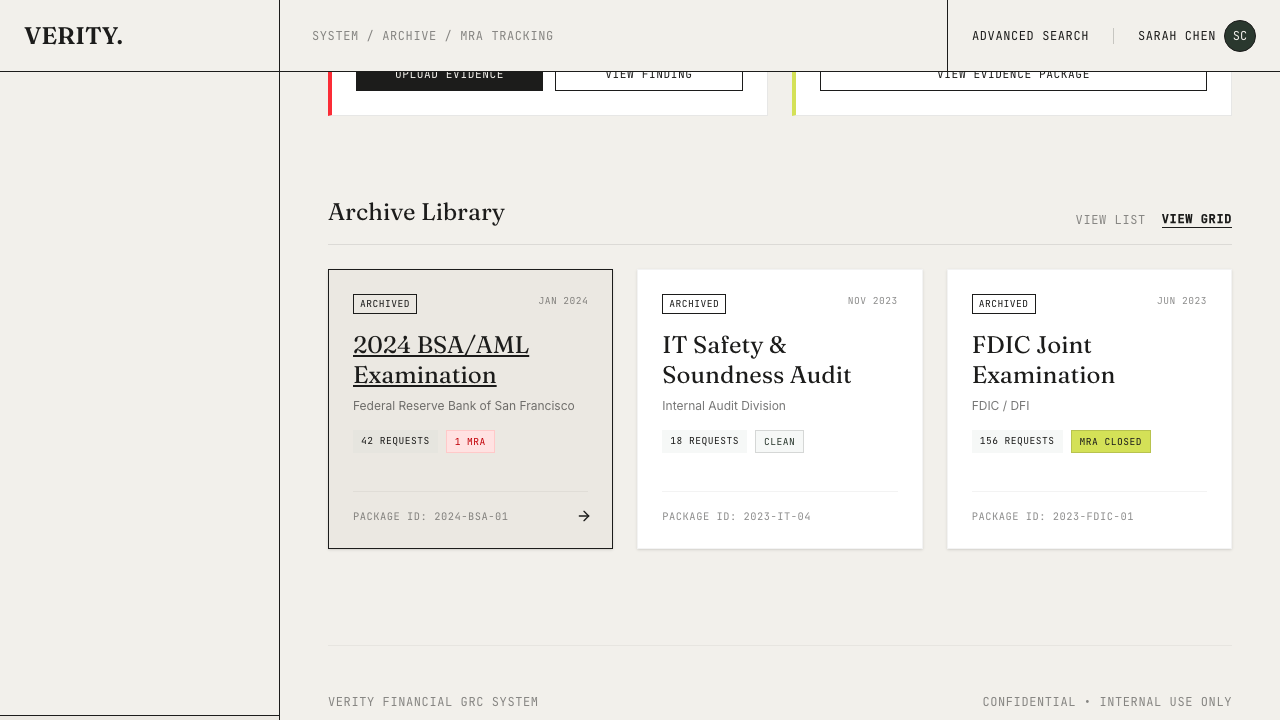
The preview
The preview shows you exactly what will be in the export:- Cover letter — prefilled with your organization name, the examiner’s details, and the response deadline
- Table of contents — every request item grouped by FFIEC pillar, with page references
- Evidence manifest — a structured inventory of every item, its status, and the files linked to it
Export options
- Format selector — choose PDF (consolidated binder) or ZIP (pillar-organized folder structure)
- Options — watermark and Bates numbering checkboxes
- Package contents — a checklist showing which items are complete and which are still pending
- Readiness indicator — shows “N/M ITEMS COMPLETE” or “N ITEMS PENDING” at a glance
PDF format
The PDF is a consolidated binder: cover letter, table of contents, per-pillar sections with item summaries, and an evidence manifest table. Uses Verity branded typography (Fraunces headings, Helvetica body, Courier mono) as print-safe fallbacks.ZIP format
The ZIP organizes evidence by pillar: each folder contains the evidence files for all items under that pillar, named with their request item IDs. The package also includes the cover letter as a PDF and an evidence manifest CSV.Response archive: institutional memory
Where to find it: Archived examinations appear in the Archive section (accessible from the sidebar or by archiving a completed examination).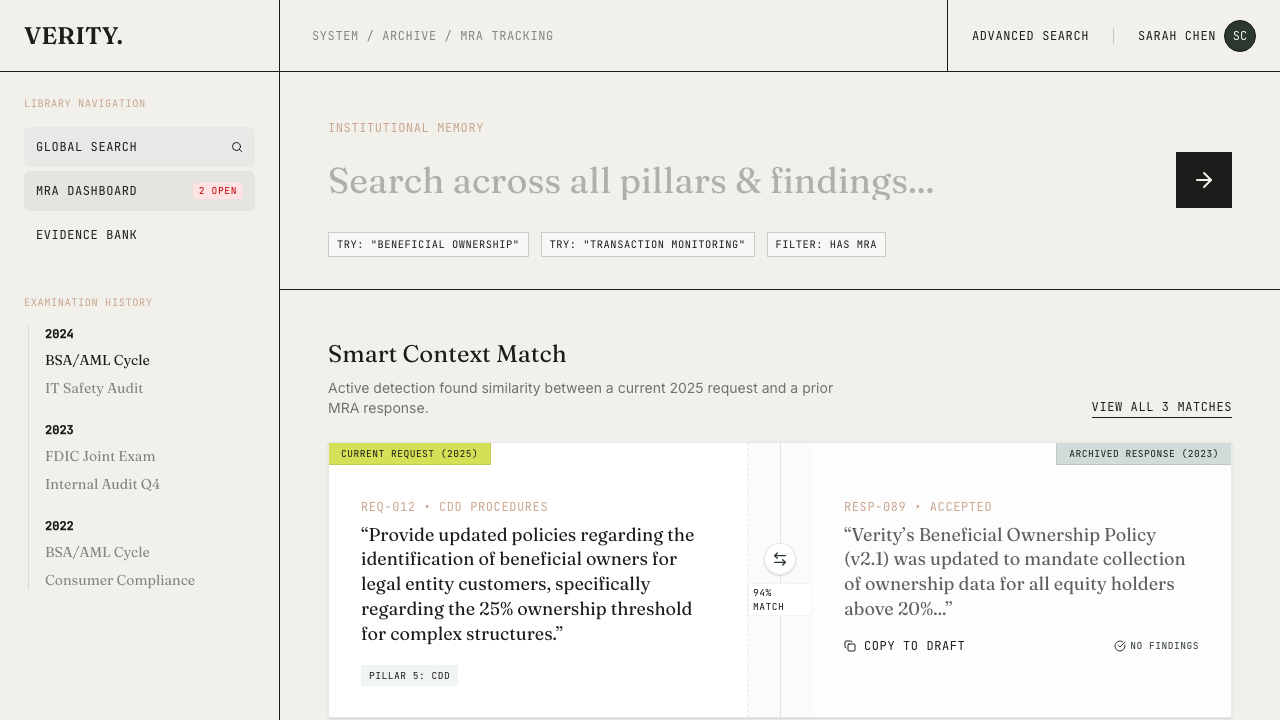
Search across examinations
The archive search lets you query across all past examinations. Looking for how you handled a specific regulatory topic last cycle? Search for it. The results show which examination contained it, what evidence was provided, and what the outcome was.MRA tracking
If the examination results in Matters Requiring Attention (MRAs), track them directly from the archived examination. Each MRA records:- The finding text
- Severity and status
- Remediation evidence and timeline
- Links back to the original request items
Evidence linking: cross-obligation propagation
Evidence links appear automatically on request items that match evidence from other obligations. When evidence is uploaded to a request item on one obligation, the system searches for semantically similar request items on other active obligations in the same org. If it finds a match (82%+ cosine similarity on the item embeddings), it creates an evidence link — a lightweight pointer that surfaces the existing evidence for human review. This works in two directions:- Forward propagation — uploading evidence triggers a search across other obligations
- Backfill — parsing a new obligation triggers a search against all existing evidence
The full loop
Here’s how all of this connects:Define what good looks like
Your compliance programs define the regulatory domains and specific criteria your program must satisfy
Parse the examination letter
When an examination letter arrives, the parser converts it into trackable items mapped to the same regulatory framework
Propagate evidence across obligations
Evidence linking automatically propagates uploaded evidence to similar request items on other obligations — no duplicate uploads
Export the response package
When evidence is ready, export the response package as a PDF binder or pillar-organized ZIP archive and submit to the examiner
Link evidence to scoring
After the examination, the auto-match system links that evidence back to your scoring criteria, strengthening your readiness score