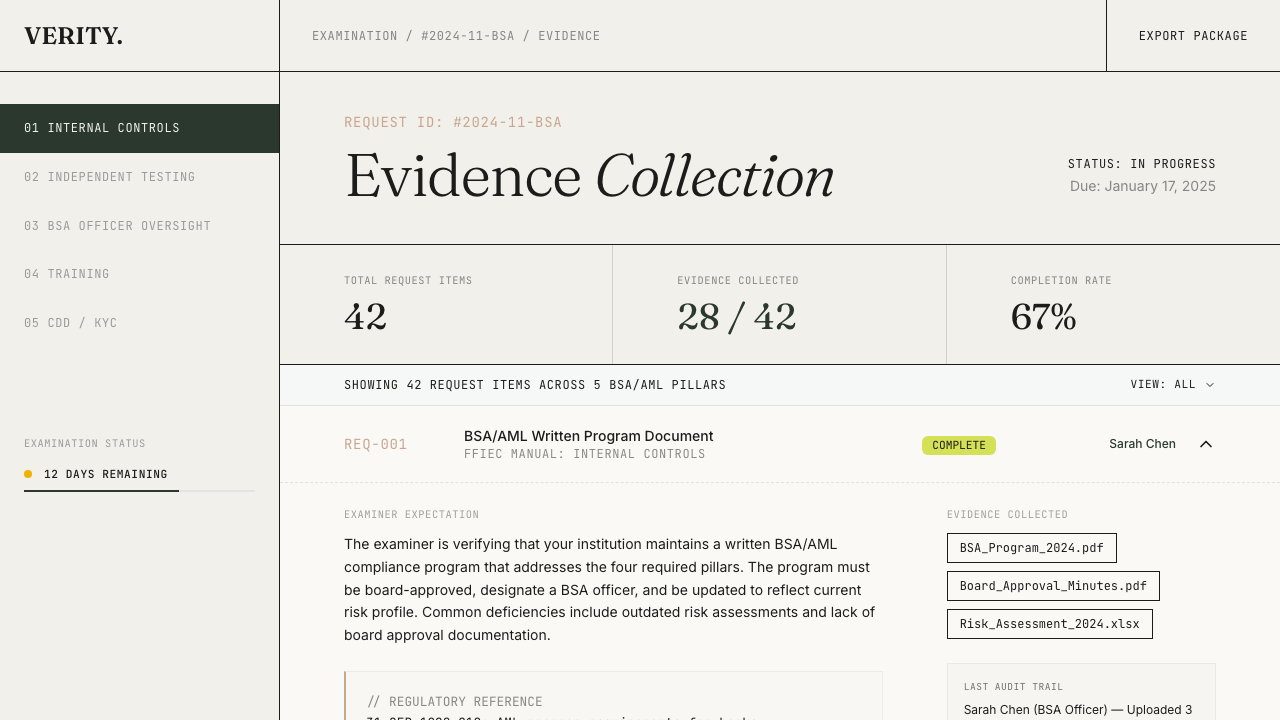
 Bank-readiness scoring maps regulatory requirements to scoring criteria by compliance domain, tracks evidence status, and computes readiness scores. Each criterion links to its regulatory source in the knowledge base.
How scoring works
The scoring model is a three-tier hierarchy: Program → Domain → Criteria.
- Programs are scoped by regulation type — BSA/AML maps to 5 FFIEC pillars, Third-Party Oversight maps to 8 OCC 2023-17 monitoring areas
- Domains correspond to regulatory categories (e.g., Internal Controls, Independent Testing)
- Criteria have an evidence status:
missing, stale, partial, or sufficient
domain_score = ((sufficient_count × 100) + (partial_count × 50)) / total_criteria
Criteria table
The domain detail page lists every scoring criterion, each one mapped to a specific section of regulatory guidance:
| Column | Description |
|---|
| Criterion text | What the regulation requires |
| Regulatory source | The specific FFIEC section or OCC 2023-17 paragraph |
| Evidence count | How many documents are linked |
| Evidence status | Missing, Stale, Partial, or Sufficient |
Reviewer notes
Click Expand on any criterion to reveal the detail section. The notes textarea lets your team add context — “Waiting on updated board minutes from Q4,” “Policy document needs legal sign-off,” etc. Notes auto-save after a one-second pause.
Linked evidence
 Below the notes, you’ll see evidence documents linked to the criterion. Each entry shows:
- The document label
- Its source type (attachment, MRA evidence, or external URL)
- An AUTO label on entries linked by the auto-match system
- A Remove button to unlink the entry
Auto-matching
The Find Evidence button in the domain detail page header bridges examination workflow and compliance program scoring.
Click “Find Evidence” to open a dialog listing your organization’s examinations with checkboxes. Select individual examinations or use Select All, then click Match Selected. The system scans each selected examination’s request items and attached evidence against the criteria in the current domain.
From the dashboard, the Run Gap Analysis button matches evidence from all examinations across all domains at once.
Matching uses two signals:
- Regulatory source alignment — request item and criterion both reference the same FFIEC section
- Domain/category alignment — request item’s assigned category corresponds to the current domain
Evidence is automatically linked to matching criteria (opt-out model). Each auto-linked entry is labelled AUTO — remove anything that doesn’t belong.
Auto-matching turns examination evidence into reusable compliance proof. Evidence uploaded for one examination cycle can strengthen your readiness score across future cycles.

